
How to connect bank feeds to Xero for same-day reconciliation
Instead of manually entering bank transactions each day, connect your bank feed to Xero, then match imported statement lines against invoices, bills and other records. This 2026 bank feeds Xero reconciliation guide separates the connection steps from the daily checks, because a connected feed does not guarantee same-day transaction delivery or completed reconciliation.
- For bank feeds Xero reconciliation, connect the correct account, check import dates and review every proposed match.
- Xero bank feeds import statement lines; reconciliation still requires matching or coding those lines correctly.
- Same-day reconciliation depends on bank delivery, supporting records and someone reviewing exceptions.
- Daintree Consulting is best for Australian businesses seeking bookkeeping support alongside accounting and business advice.
Why this matters
A bank feed moves transaction data; reconciliation explains what that data means. An incoming payment might settle an invoice, represent a loan or move money between your own accounts. The bank description alone does not establish the accounting treatment.
A useful daily routine keeps those decisions close to the transaction date, while the details are still easy to confirm. It also exposes missing receipts, unpaid invoices and unexplained withdrawals before they become a month-end backlog.
Daintree Consulting provides bookkeeping, accounting and advisory services for Australian businesses. The practical objective is one clear picture: imported bank activity matched to records that explain the business's cash movements.
Before you start
- Gather access and account details. Have access to the correct Xero organisation, permission to manage its bank accounts, and the bank authorisation required for the connection. Keep the account name, number, currency and a recent statement ready. Never share banking passwords with an adviser.
- Identify the existing bookkeeping position. Check whether the bank account already exists in Xero, when its last statement line was imported and which transactions remain unreconciled. For a new organisation, confirm the conversion date and opening balances before treating the feed as a complete history.
- Check the overlap risk first. A feed start date that overlaps an earlier statement import can create duplicate statement lines. For a 2026 setup, record the exact last imported date and inspect that day's transactions before choosing where the new feed begins.
The non-obvious trap is connecting the right bank account to the wrong Xero ledger account. Compare account numbers, not just names such as Business Account, especially when several accounts have similar labels.
Choose your transaction-import workflow
A direct feed is the starting point for recurring imports. A statement import is a useful alternative when a connection is unsupported, delayed or missing a specific period. Neither method completes reconciliation by itself.
| Workflow | Best for | Main benefit | Main limitation | Required control |
|---|---|---|---|---|
| Direct bank feed | Ongoing bookkeeping for a supported bank account | Reduces repeated statement uploads | Delivery depends on the bank connection; authorisation can need attention | Check feed status and the latest imported transaction date |
| Statement import | Historical gaps or an account without a working feed | Lets you bring a defined statement period into Xero | Manual selection creates an overlap and duplicate risk | Compare account details, dates and existing statement lines before importing |
Use one import route for each transaction period. If you upload a statement while repairing a feed, record the covered dates so the restored connection does not leave you reconciling the same bank activity twice.
Bank account connection
01. Account selection
- Open the correct Xero organisation and go to Bank accounts. Review the accounts already listed before adding anything.
- If the account already exists, open its connection options rather than creating another ledger account. For a genuinely new account, select Add Bank Account.
- Search for your bank and choose the result that matches your account type. Follow the connection method presented for that bank; the authorisation process is not identical across institutions.
- Check the account number and currency against your statement. Where the connection lets you select multiple accounts, include only the accounts that belong in this Xero organisation.
Expected result: You have identified the correct real-world bank account and the Xero account that will receive its statement lines. No second ledger account has been created for an account already recorded.
02. Bank authorisation
- Complete the bank's displayed authorisation process. Use your own authorised access and follow any approval requirements shown by the bank.
- Confirm which accounts the connection will share with Xero. Exclude personal or unrelated business accounts unless they genuinely belong in the organisation's books.
- Where a transaction start date is offered, select it using your import history. Do not assume every bank provides the same historical period or date controls.
- Return to Xero and check the connection status. If the bank requires an additional approval, complete that requirement before expecting transactions to appear.
Expected result: Xero shows the account's connection status, and any outstanding authorisation requirement is identifiable. A completed connection is not evidence that all historical transactions have arrived.
03. Import verification
- Compare the latest imported statement lines with the bank's posted transactions. Check dates, amounts and descriptions rather than relying only on the balance shown on the account tile.
- Inspect the boundary between the previous import and the new feed. Look for missing or repeated transactions around that date.
- Investigate any gap before reconciling the affected period. For example, if your 2026 records begin after transactions already entered in Xero, confirm whether earlier statement lines still need importing.
- Retain a note of the connection date, import start point and unresolved exceptions. Give the person reviewing the accounts enough detail to distinguish a feed issue from a bookkeeping issue.
Expected result: The imported period is understood, account details agree and any missing or duplicate lines are identified before matching starts.
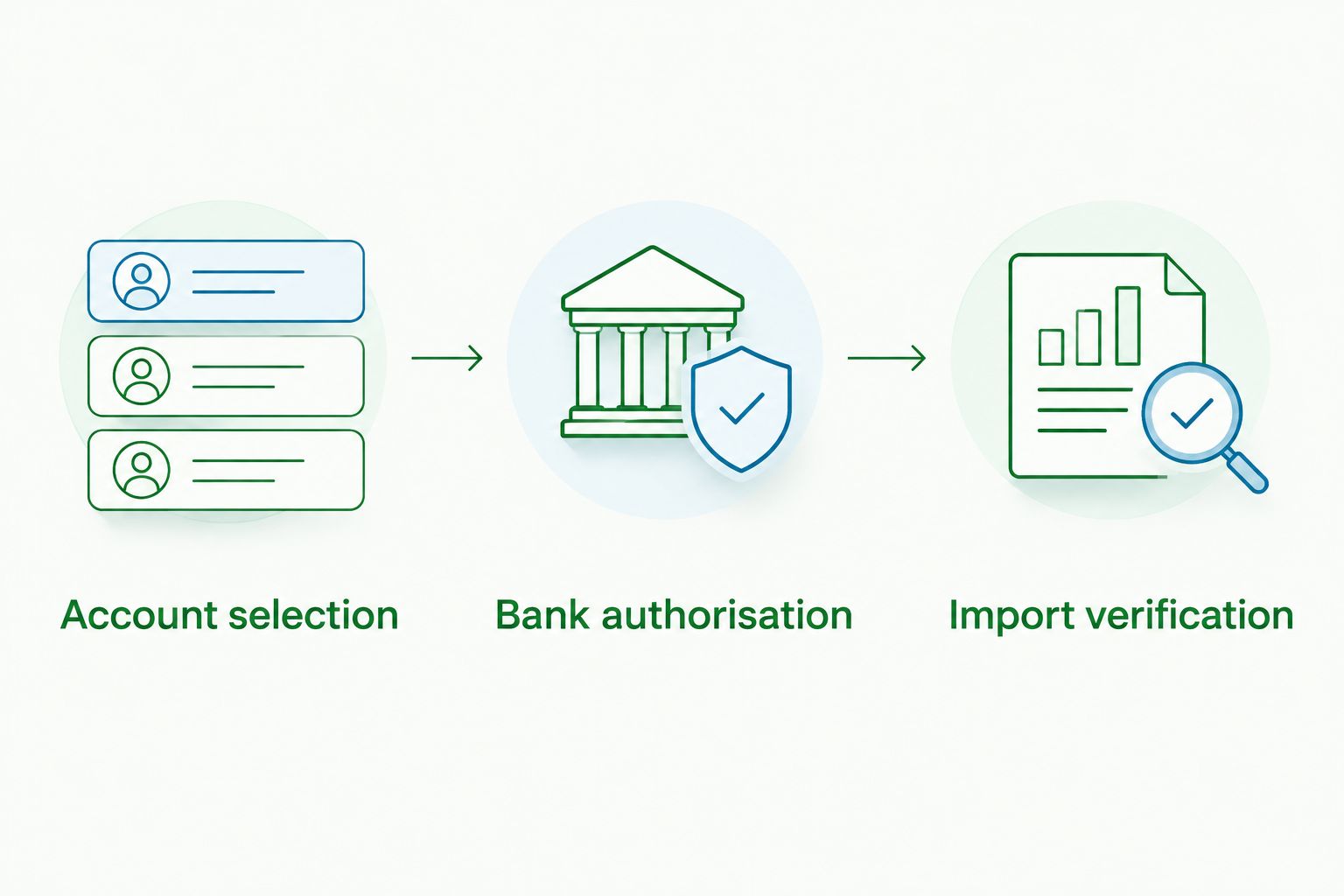
The connection process follows a simple sequence: account selection, bank authorisation and import verification. Treat verification as part of setup, not as an optional check after reconciliation.
Daily reconciliation controls
04. Transaction matching
- Open Reconcile for the relevant bank account. Review each statement line alongside the accounting transaction Xero proposes.
- Check the contact, amount and reference before accepting a suggested match. A matching amount is not enough when several invoices have the same value.
- Use Find & Match when the correct invoice, bill or payment already exists but is not the proposed match. Select the records that explain the statement line, including multiple records when a combined payment settles several items.
- Use Create only when a new accounting transaction is needed. Enter the appropriate contact, account and tax treatment; do not create an expense merely because an existing bill was difficult to find.
- Confirm the reconciliation only after the explanation is correct. Keep unresolved lines for investigation rather than coding them to a convenient account to clear the screen.
Expected result: Each reconciled statement line links to an appropriate accounting record, without duplicating an invoice payment, bill payment or expense.
05. Exception ownership
- Assign one person to review the feed and another person to cover absences. Accountability matters more than having several people assume somebody else checked it.
- As a starting routine, schedule 2 checks per working day: one for new bank activity and one for unresolved questions. This is a suggested operating rhythm, not a promise about bank refresh times.
- Keep 1 exception list containing the transaction date, amount, question and person responsible. Request receipts or explanations while the transaction is still familiar.
- Set aside 10 minutes per working day initially to assess the workload. Extend the allocation when transaction volume or complexity requires it; the purpose is a repeatable review, not a rushed deadline.
Expected result: Every unexplained transaction has an owner and a next action. Your 2026 daily process distinguishes completed reconciliation from transactions still awaiting bank delivery or supporting information.
Reconcile whenever new statement lines arrive
The adjacent workflow is an arrival-led review rather than a fixed daily review. Use it when the person responsible can act as new statement lines become available; retain a scheduled check so a stalled feed is not overlooked.
Start by checking whether the statement line relates to a record already in Xero. Customer invoice payments and supplier bill payments belong against those records, not against newly created income or expense entries.
For recurring transactions without an existing invoice or bill, consider a bank rule after confirming the accounting treatment. Rules can suggest consistent coding, but a repeated bank description does not prove that every transaction has the same purpose or GST treatment.
Before saving a rule:
- Choose conditions that distinguish the intended transaction from unrelated activity.
- Confirm the account and tax treatment with the person responsible for the books.
- Review the proposed result against actual supporting records.
- Keep checking exceptions after the rule is in use.
Bank rules reduce repeated entry; they do not replace judgement. If a supplier charges for different types of purchases, a broad rule can make the books consistently wrong rather than consistently useful.
Troubleshooting bank feeds and reconciliation
The feed is connected, but today's transactions are missing
Check whether the transaction is posted at the bank or still pending. Then review the connection status, authorisation requirements and the latest imported date in Xero.
Do not repeatedly reconnect the account or upload overlapping statements to force a result. If a posted transaction remains missing, investigate the connection and identify the exact gap before choosing a statement import.
Statement lines appear twice
Compare the repeated lines with the bank statement and your import history. A manual upload and a feed covering the same dates can produce duplicates, but equal amounts alone do not establish duplication.
Confirm that only one real transaction occurred before removing an extra statement line. If either copy has already been reconciled, review its linked accounting transaction before changing anything.
The bank balance and Xero balance disagree
First compare like with like: the same account, the same date and posted rather than pending activity. Then check for missing statement lines, duplicates, opening-balance issues and unreconciled accounting transactions.
Do not enter a balancing transaction simply to make the figures agree. That hides the cause and can misstate income, expenses or liabilities.
Xero suggests the wrong match
Open the underlying invoice, bill or payment and inspect its contact, reference, amount and status. Use Find & Match to locate the correct record rather than accepting the first suggestion.
If the correct record does not exist, establish what the payment represents before creating anything. Transfers, loan repayments and owner transactions need different treatment from ordinary sales and expenses.
A bank rule keeps choosing the wrong coding
Review the rule's conditions and the account or tax treatment it applies. Narrow or stop using the rule until the transaction pattern is understood.
Correct affected accounting records as well as the rule itself. Changing a rule does not establish that earlier entries are accurate.
Customise your workflow
Once the feed is reliable, expand the process beyond clearing statement lines. Use reconciliation exceptions to improve receipt collection, invoice references and the way staff explain business purchases.
For businesses with several accounts, apply the same ownership and checking routine to each account. Include transfers in the review so movements between accounts are not mistaken for revenue or expenditure.
Daintree Consulting's bookkeeping and advisory services suit businesses that need transaction records connected to wider financial decisions. The benefit is clearer reporting; the limitation is that reporting still depends on complete source records and explanations from the business.
For your 2026 reporting cycle, agree who handles daily matching, who resolves uncertain tax treatment and who reviews the completed period. Those are separate responsibilities even when the same person performs them.
Clarify your bookkeeping workflow
Discuss bank reconciliation, exception ownership and reporting responsibilities for your business.
FAQ
Does connecting a bank feed automatically reconcile Xero?
No. A bank feed imports statement lines into Xero; reconciliation matches those lines to existing records or creates appropriate new transactions. Suggested matches still need checking.
Can I reconcile today's bank transactions in Xero today?
Yes, when the posted transactions have reached Xero and you have the records needed to explain them. Connecting a feed does not guarantee same-day delivery from your bank.
Should I create another Xero bank account when reconnecting a feed?
Use the existing Xero bank account when it represents the same real-world account. Creating another ledger account can split the transaction history and complicate reconciliation.
Can I import a statement while my bank feed is not working?
Yes, a statement import can fill a defined gap. Check the account and date range first, then inspect for overlap when the feed resumes.
Why does Xero suggest creating an expense for a bill I already entered?
The existing bill or its payment might not be identified by the suggested match. Search the records using Find & Match before creating a new expense, which would duplicate the accounting entry.
Are bank rules enough to handle GST correctly?
No. A bank rule applies the treatment configured in the rule; it does not establish the transaction's correct GST treatment. Check supporting records and obtain advice when the treatment is uncertain.
Who should manage bank reconciliation for an Australian business?
Assign someone who understands the records and knows when to escalate accounting or tax questions. Daintree Consulting provides bookkeeping alongside accounting and advisory services for Australian businesses needing that support.
One last thing
A completely cleared reconciliation screen is not proof of accurate accounts. Every line can be reconciled against the wrong record or coded to the wrong account.
Before calling the process finished, inspect the explanation behind a transaction, not just its reconciled status. For a 2026 workflow, make the final question practical: does this record explain what actually happened, with evidence another person can follow?
